Guide: How to Prepare Your Artwork Files In Canva
By following these steps, you can confidently design print-ready files in Canva
By Julia Girdharry

Accurately setting up your files for printed jackets, inserts, and sleeves is key to a smooth order process.
Canva is an easy tool for independent and DIY artists to create album artwork and promotional materials. While Canva does not provide the same features as professional design software, it includes the essential tools needed to prepare artwork for commercial printing when used correctly. These steps will help your artwork meet our print requirements and help keep your project on track.
Step 1: Download PDF Template
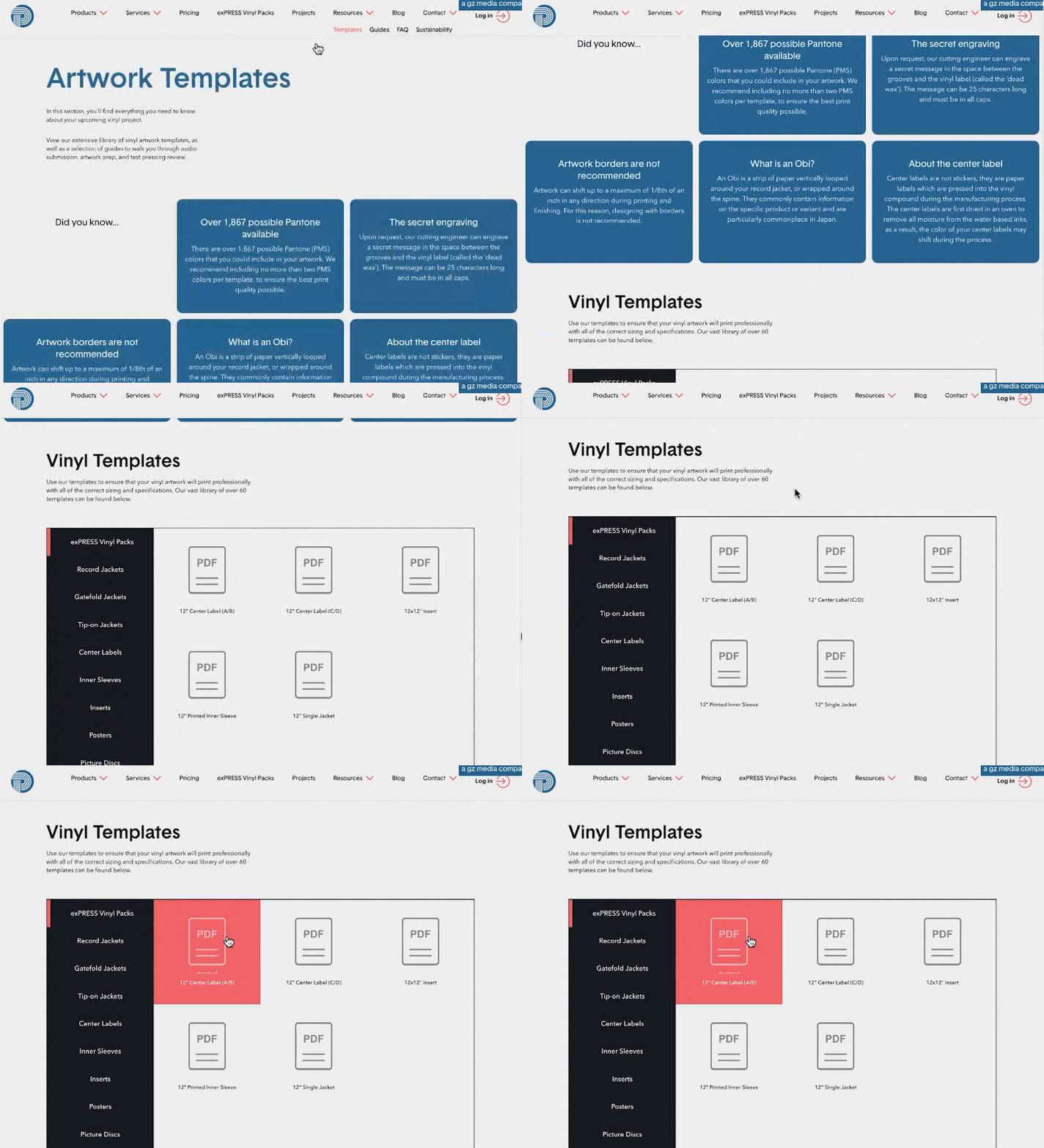
Begin by downloading the correct template from the Precision Record Pressing website. Each template includes specifications such as bleed, trim lines, and safe areas. Uploading the PDF template ensures your file meets printer requirements.
To browse and download templates, please visit precisionpressing.com/templates
Step 2: Upload the PDF Template into Canva
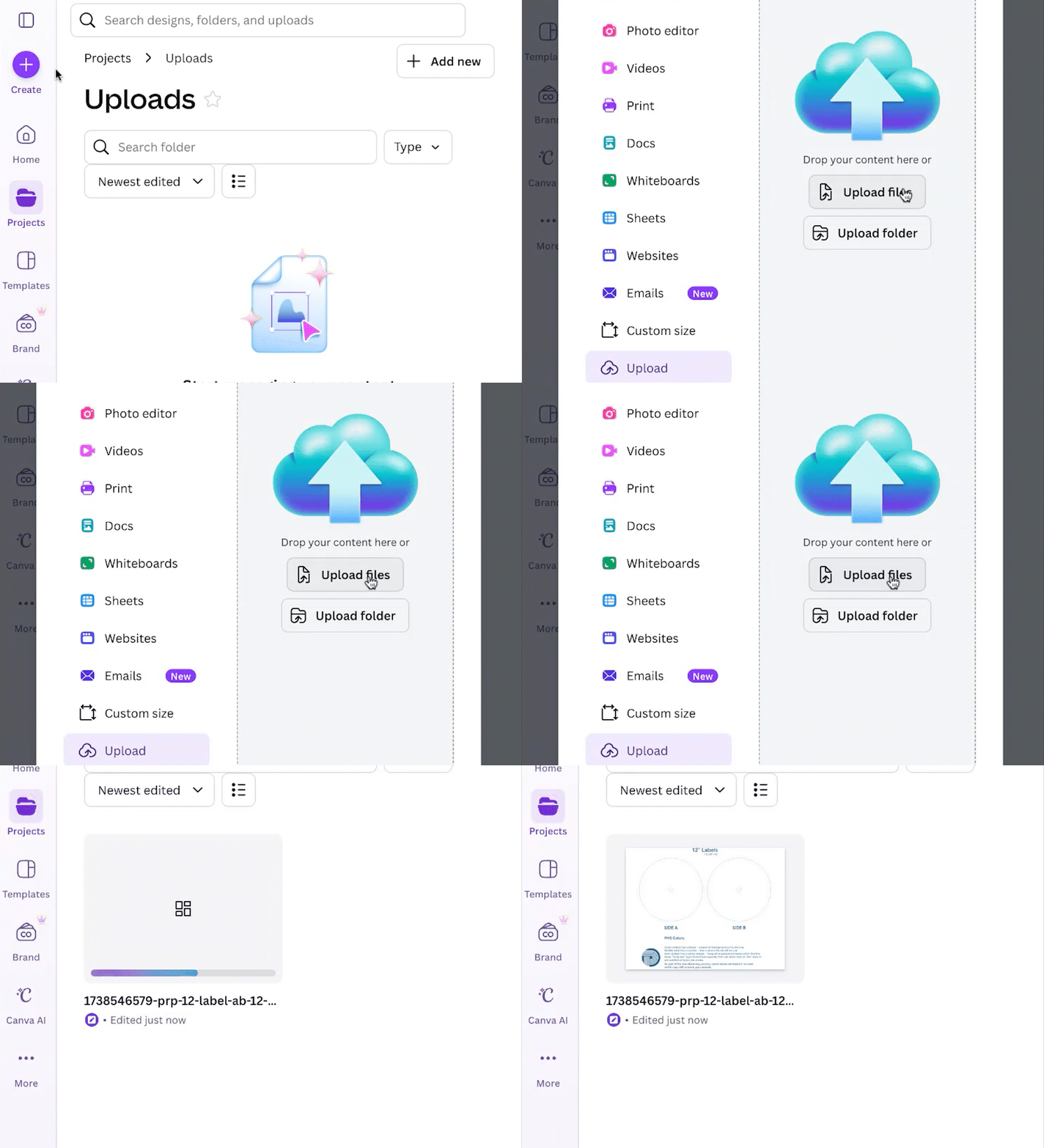
When you upload the PDF template, Canva converts it into an editable design file at the correct scale. Never start from a blank Canva document and resize manually, as this increases the risk of incorrect proportions.
- Click Create → Upload file
- Upload the PDF template
- Click Home
- Find the uploaded template under Recents
- Open the file
Step 3: Preparing Your File
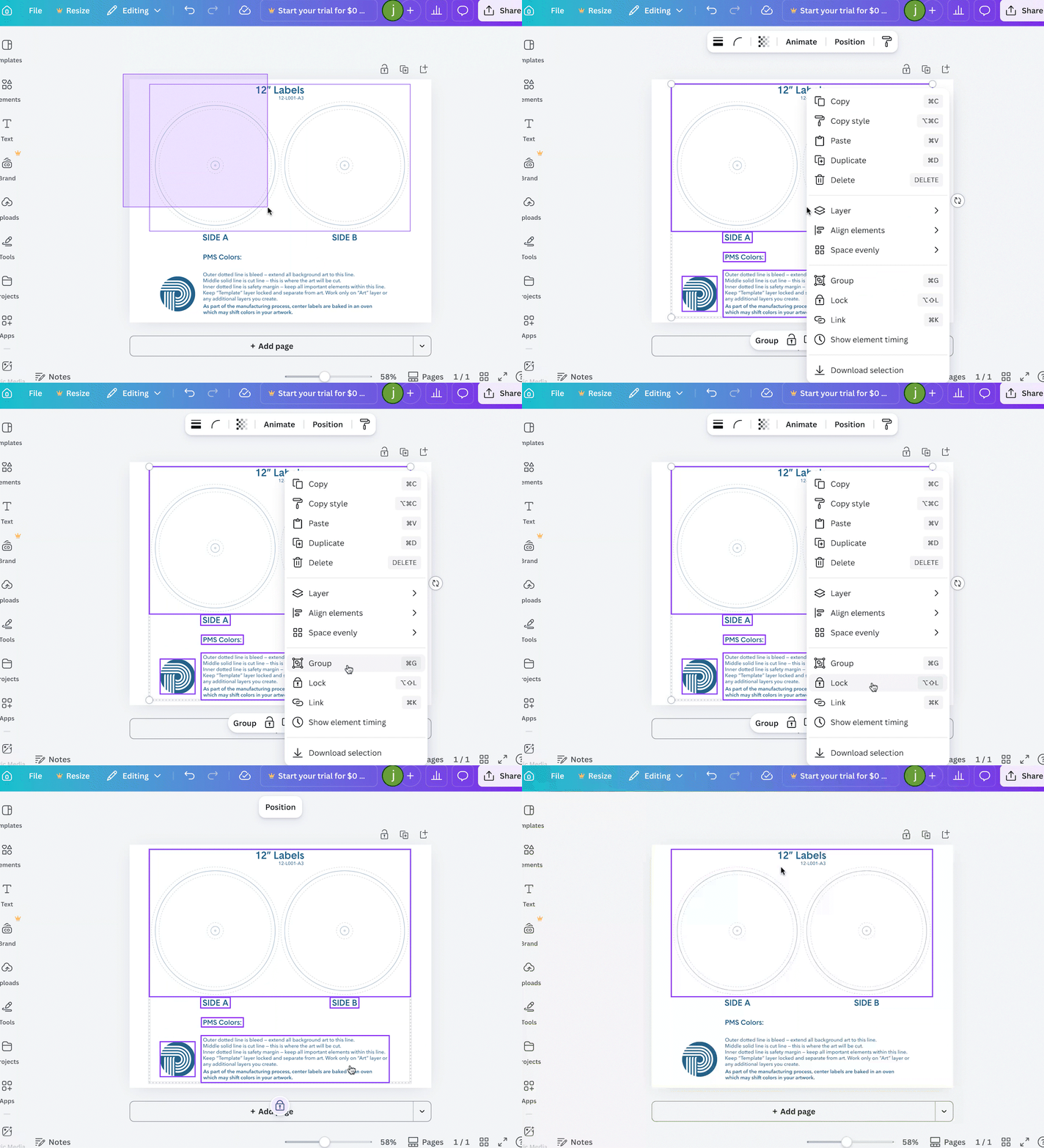
- Select elements of the template
- Right-click for more options
- Select Lock from the menu
Step 4: Adding Design Elements
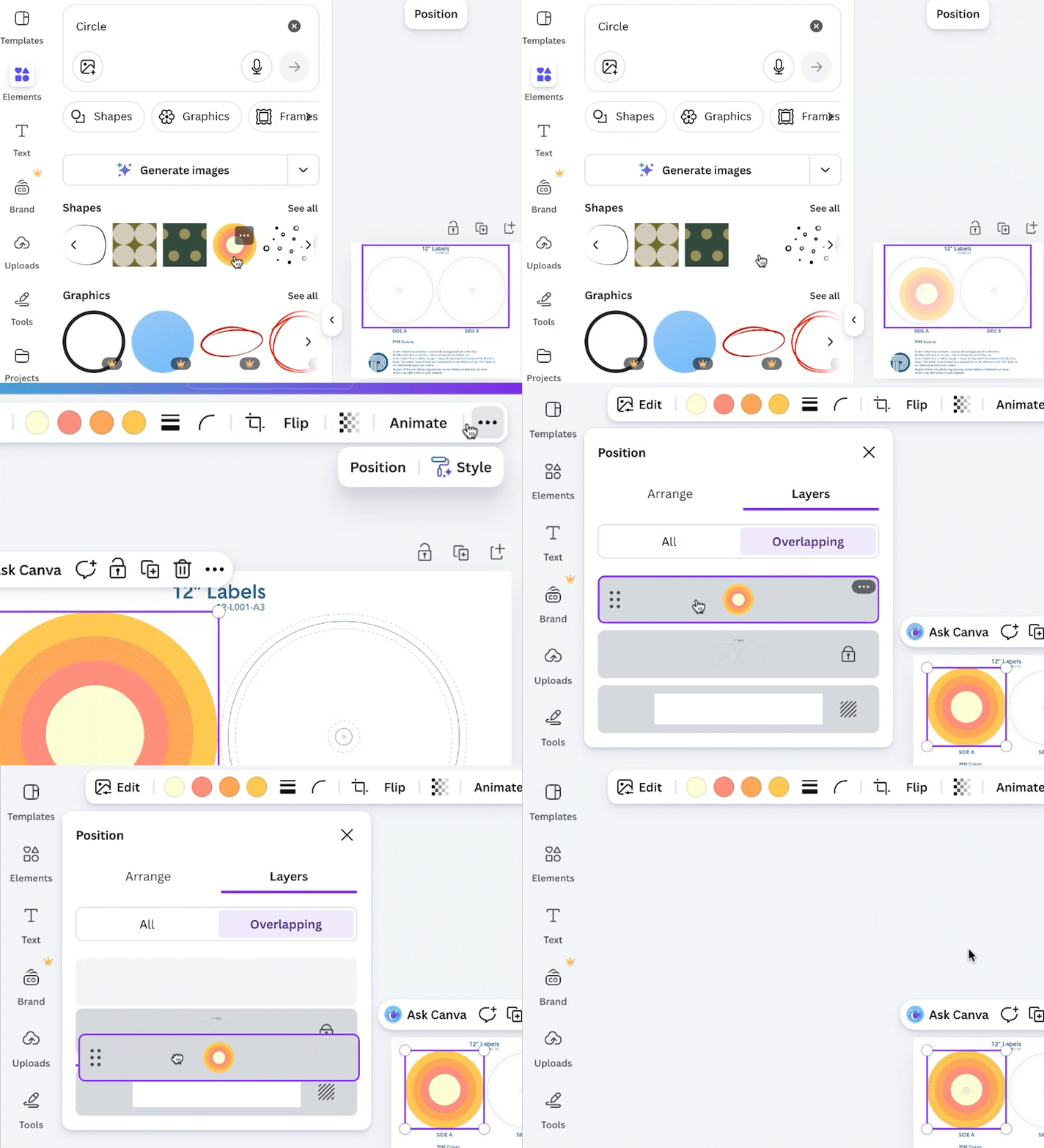
In Canva, you can add elements, backgrounds, text, or high-quality images (at least 300 DPI). Each time you add something to your design, Canva automatically creates a new layer for that element.
Always keep the template layer visible and at the top of your layers to help you stay within the print limits.
- Click Position
- Select Layers
- Drag the template layer to the top
You can temporarily hide the template layer to preview exactly how your final artwork will appear without guides, without removing the template from the art file.
Step 5: Review Bleed, Trim, and Safety Margins
Before downloading your artwork, review the following print guides:
Bleed Area
On the template, the bleed is indicated by the outermost dotted line. The background must extend past the dotted bleed line to prevent white edges after cutting.
Cut Line
The solid line indicates the cut line. This shows where your artwork will be trimmed.
Safety Margin
The innermost dotted line is the safety margin. Keep all important elements, such as text, logos, and barcodes, within this area.
Step 6: Export For Print
When you’re finished:
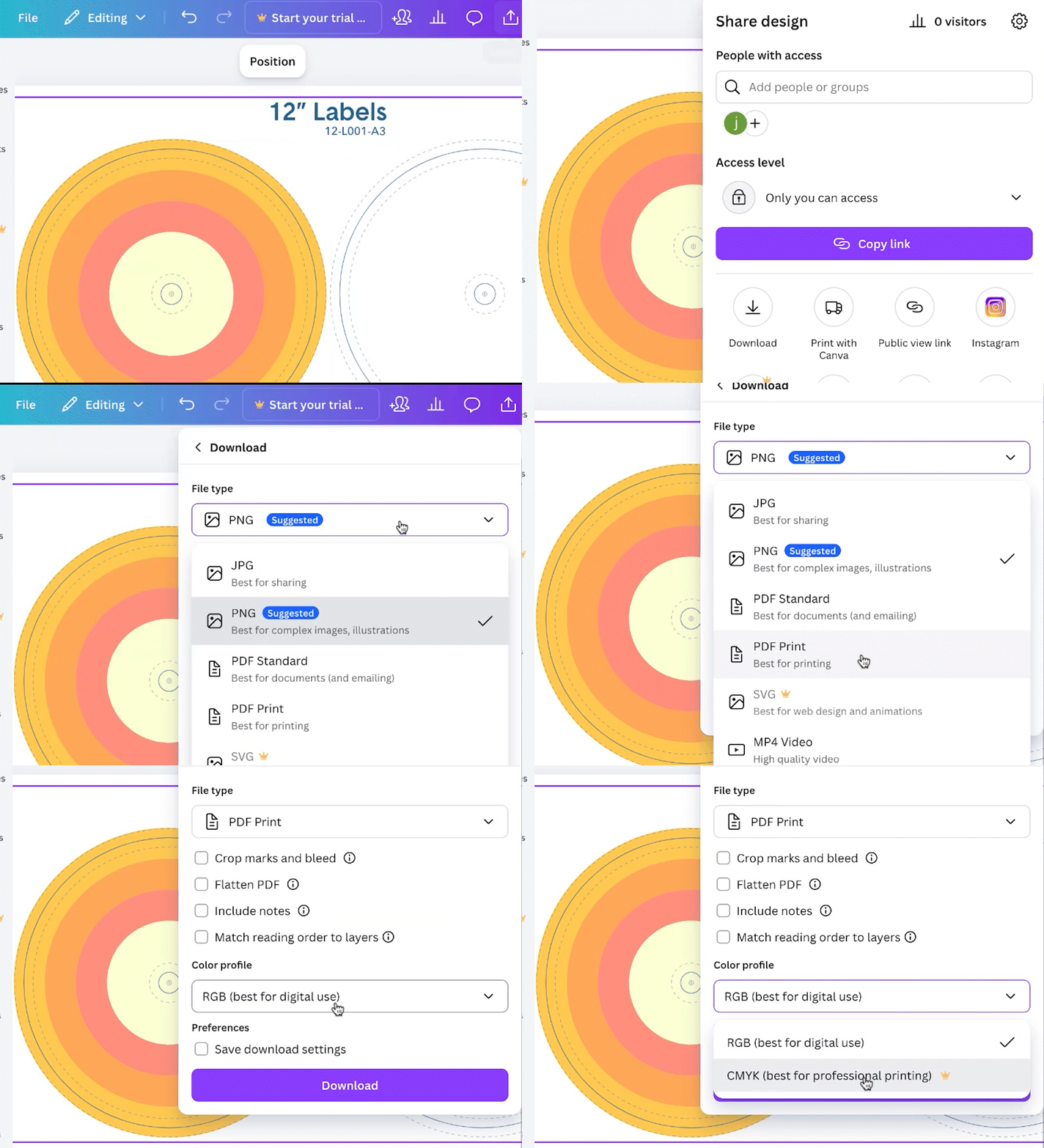
- Click Share located in the top menu bar
- Select Download
- Choose PDF Print from the dropdown menu
- Select CMYK (if the feature is available in your Canva subscription)
- Click Download
When to Hire a Graphic Designer
Canva offers basic design features and you may encounter design limitations for more complex printing.
Consider professional design support if you’re doing:
- Foil stamping
- Spot UV
- Tip-on jackets
- Gatefold layouts
- Custom die cuts
PRP’s graphic designers can help with everything from setting up your files to creating a full design identity for a vinyl package. Visit precisionpressing.com/graphic-design for more.